Associating Store Locator Plus locations with WooCommerce products is a new feature provided by the Premier plugin for Store Locator Plus. The Premier plugin is an add-on that is available exclusively to Premier Subscription holders.
In order to activate the WooCommerce product mapping features of the Premier add-on, you will need to WooCommerce installed and activated on your site. When WooCommerce is installed the WooCommerce modules are automatically activated within the Premier add-on. You should activate WooCommerce before importing locations with WooCommerce product relations.
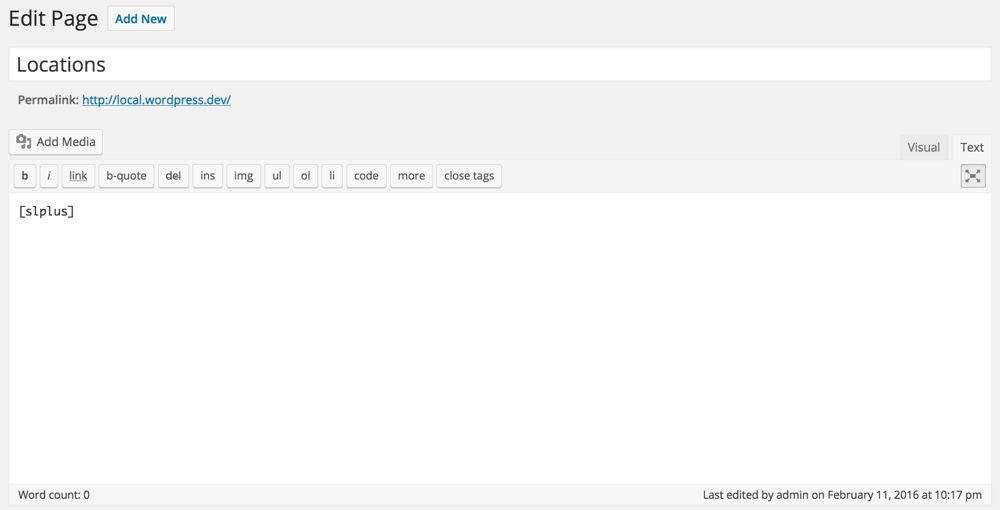
To create a locator page that has a zip/postal code search box, a map of your locations, and the results list put the [slplus] shortcode on a page or post.
Go to Pages in your WordPress admin.
Create a new page.
Name it “Locations”.
Enter [slplus] in the main content area of the page.
Details
First create a new page for your WordPress site where the Store Locator Plus plug-in will reside. Add the shortcode (a special label inside of square brackets that is used within WordPress pages and posts to display the output from a plugin). You place a shortcode within the text of your page or post and the plugin will “do it’s magic”
Locator Shortcode
To display the Store Locator Plus search form, map, and search results using the defaults you have setup via Map Settings in the admin panel, use the following shortcode:
[slplus]
The base plugin will replace the shortcode with a search form, a Google Map, and a results section below the map. Depending on how you have the plugin configured the map and results may start by showing some or all of your locations.
Hint: Do not copy and paste off this page or all you will see is the text. You must type in the shortcode onto your WP page.
SLP slplus shortcode
Additional Shortcodes can be found under the SLP documentation Shortcodes:SLP
Buy Here For WooCommerce is a free WordPress plugin that allows you to associate Store Locator Plus locations with WooCommerce products. When customers search for physical locations they will see a list of products offered at that location.
This document describes the initial installation and setup for Buy Here For WooCommerce.
Install The Required Plugins
Login to your WordPress site and go to the Plugins / Add New screen.
Search for “Buy Here For WooCommerce” from the WordPress Plugin Directory. Install and activate that plugin.
Note: Buy Here For WooCommerce requires Store Locator Plus 4.4.18 or higher and WooCommerce 2.4.10 or higher. If either are not installed or are not activated the Buy Here For WooCommerce plugin will not activate.
From your WordPress admin login go to Store Locator Plus, go to the Locations tab and Add Locations.
Add Products
From your WordPress admin login go to WooCommerce Products and Add Products.
Connect Locations To Products
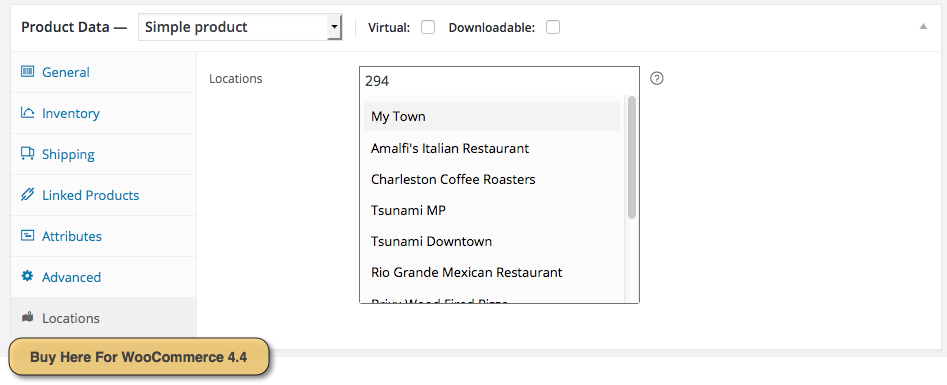
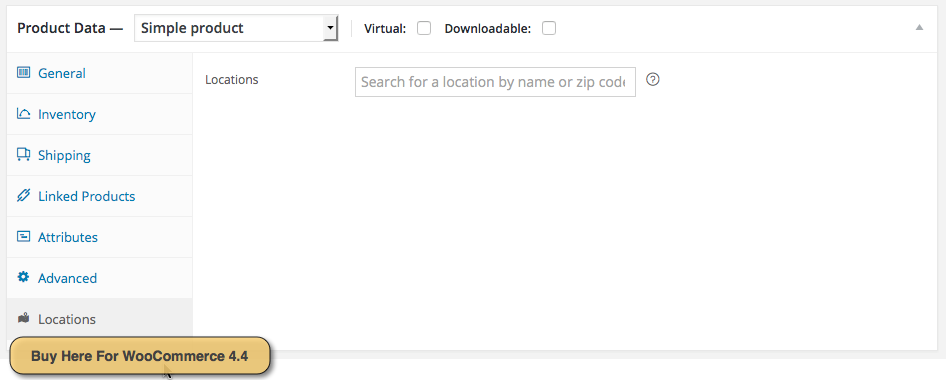
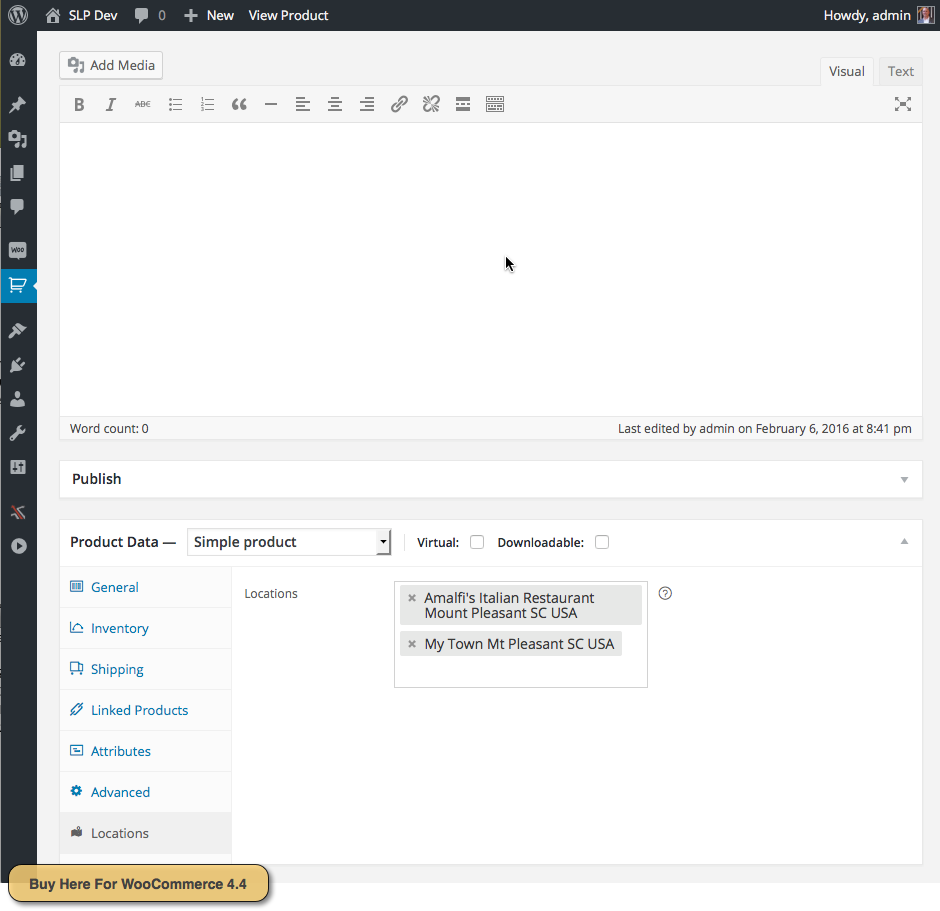
While adding a new product, click the Locations panel in the Product Data section.
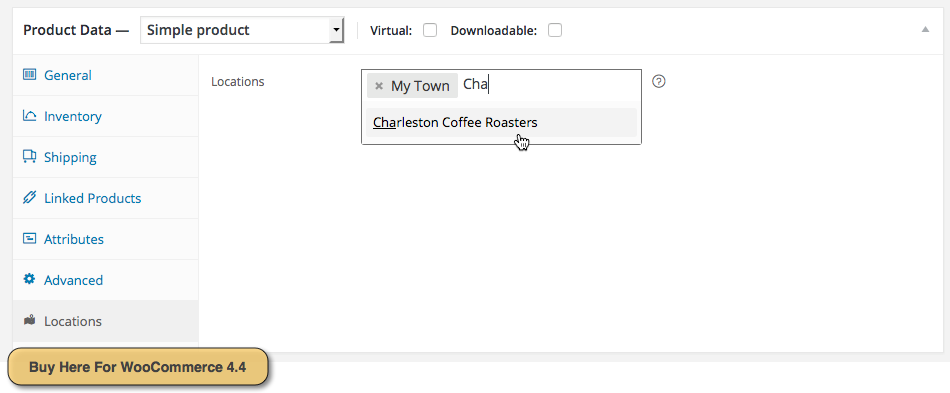
Start typing the name of a location or the postal/zip code. When you type the 3rd letter a list of Store Locator Plus locations that match your search will appear. Select a location that you wish to have associated why the product.
BHWC Location Search In Progress
BHWC Initial Location Selection Interface
BHWC Associating Second Location
BHWC Add Location To Product
Create A Locations Page
Go to Pages and add a new page. On that page put the [slplus] shortcode.
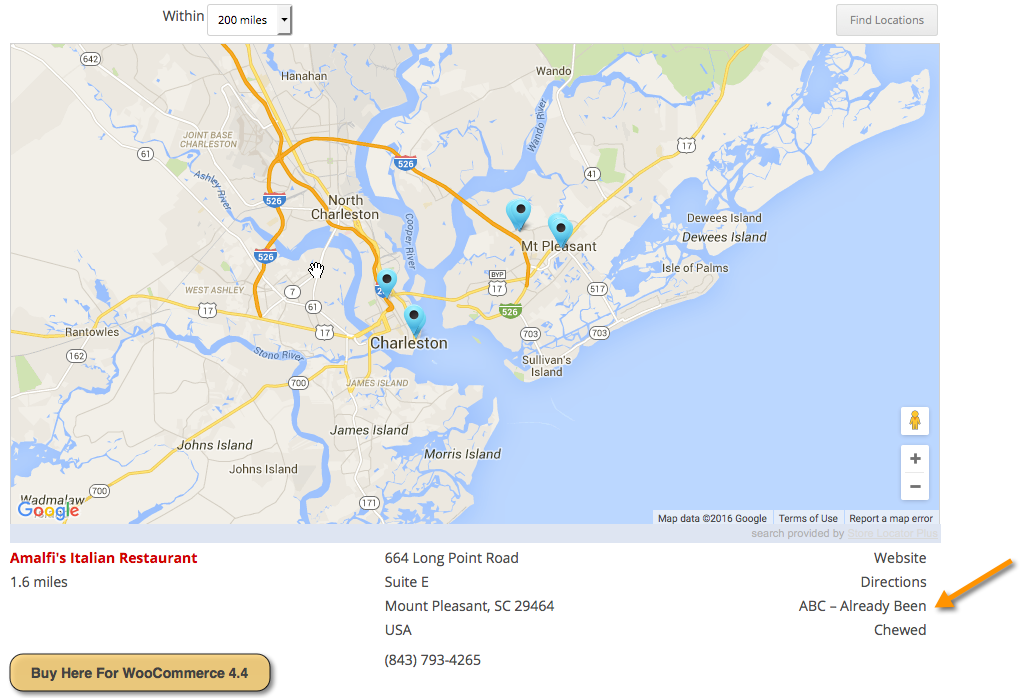
Open that page to see your location search form, map, and list of locations.
Locations that have product data associated with it will show the product data under the details column on the right side of the location listing.